How to install Windows 11 correctly
Introduction
So in order to install it you need
Requirements
any Windows 11 iso
ventoy usb
compatable windows 11 pc ex: 4th gen intel with tpm or first gen ryzen with tpm
Storage Drivers ex: WMD DUH Intel z
Step 1 (Prepering Storage Drivers)
Unzip the drivers to follder that has the drivers not exe
and copy it to ventoy usb flash drive
like this

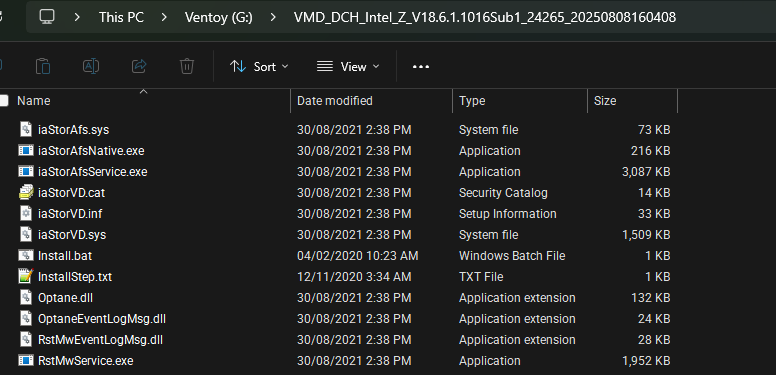
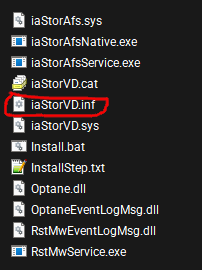
to know that its correct it has to have inf file next to other files
Step 2 (Prepering Windows ISO)
Download any Windows 11 iso
I recommand windows 11 ltsc
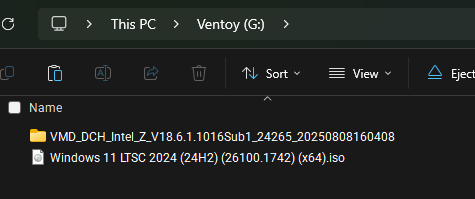
Copy it to ventoy
so it becomes like this
Step 3 (Booting)
Boot to ventoy and boot to windows iso
Step 4 (Installing drivers on iso)
Go do the windows setup normally till it tell you that it can’t find storage device
click add driver and add your driver till it shows your disk
if it shows your disk contune with the guide
don’t parttion it using the installer or install windows using it!
Step 5 (Openning cmd)
Click Shift + f10 to open cmd
Step 6 (Parttions + Mount Letters)
type diskpart then hit enter
now type list disk then hit enter
so now you see all sizes
its recommaded to only have the ssd that you want to install windows on connected
in my case its 0
so i typed sel disk 0
if yours is 1 type sel disk 1
now this is where you remove everything from it
this is going to wipe everything
type clean and hit enter
now convert it to gpt covnert gpt
Now Create EFI parttion and format it and mount it
create part efi size=512
foramt fs=fat32
assign letter=a
Create Recovery parttion and format it and mount it
create part pri size=10240
set id="de94bba4-06d1-4d40-a16a-bfd50179d6ac"
format fs=ntfs quick label=WinRE
assign letter=y
Create Windows parttion and format it and mount it
create part pri
format quick fs=ntfs
assign letter=b
now to confirm everything and
to find windows iso mount letter
and usb mount letter type
list volume
in my case as we setup eliar
A: is efi
Y: is recovery parttion
B: is windows parttion
G: is ventoy that has the drivers
X: is windows iso
now type exit to exit from diskpart
Step 7 (Finding what edtion to install)
dism /Get-WimInfo /WimFile:X:\sources\install.wim
in my case the iso has 1 and 2 and i will be installing 1
Step 8 (Installing Windows)
Now to install Windows you need to use dism
dism /Apply-Image /ImageFile:X:\sources\install.wim /Index:1 /ApplyDir:B:\
replace the number in Index:1 to what edtion you want to install
ex Index:2
Step 9 (Installing drivers to windows)
Now run this to install drivers to windows
dism /Image:B:\ /Add-Driver /Driver:G:\VMD_DCH_Intel_Z_V18.6.1.1016Sub1_24265_20250808160408 /Recurse
G:\VMD_DCH_Intel_Z_V18.6.1.1016Sub1_24265_20250808160408 beening the path of ventoy and drivers in it
Step 9 (Boot loader)
Use Bcdboot to create boot files
bcdboot B:\windows /s A: /f UEFI
Step 10 (Installing Drivers to Recovery image)
mkdir B:\mount
dism /Mount-Wim /WimFile:B:\Windows\System32\Recovery\WinRE.wim /index:1 /MountDir:B:\mount
dism /Image:B:\mount /Add-Driver /Driver:G:\VMD_DCH_Intel_Z_V18.6.1.1016Sub1_24265_20250808160408 /Recurse
dism /Unmount-Wim /MountDir:B:\mount /Commit
G:\VMD_DCH_Intel_Z_V18.6.1.1016Sub1_24265_20250808160408 beening the path of ventoy and drivers in it
Step 11 (Installing Recovery files to the recovery parttion)
Run this commands to do it
mkdir Y:\Recovery\WindowsRE
xcopy B:\Windows\System32\Recovery\Winre.wim Y:\Recovery\WindowsRE\ /H /R /Y
reagentc /setreimage /path Y:\Recovery\WindowsRE
reagentc /enable
now run reagentc /info to check
you should see Windows RE status: Enabled
Step 12 (Restarting to the windows on the ssd)
Just Close cmd and close windows setup and it should restart automatcily
Step 13 (Bypass OOBE) (Bypass Online Account)
open regedit and load C:\windows\system32\config\system as sys
go to Computer\HKEY_LOCAL_MACHINE\SYSTEM\Setup
make Cmdline to cmd.exe
restart and now cmd should start
make user
net user SteavenGamerYT /add
net localgroup users SteavenGamerYT /add
net localgroup administrators SteavenGamerYT /add
now open regedit
go to Computer\HKEY_LOCAL_MACHINE\SYSTEM\Setup\Status\ChildCompletion
Change or Create DWORD32 oobeldr.exe, setup.exe, SetupFinalTasks and make them 3
Go to Computer\HKEY_LOCAL_MACHINE\SYSTEM\Setup
Make CmdLine Empty, Remove everything from it
OOBEInProgress, SetupPhase, SetupType, SystemSetupInProgress 0
SetupSupported 1
Step 14 (Restarting Windows)
Run this command in the same cmd window shutdown /r /t 0
Now windows will restart and it will boot to the new user
and this is how you install windows correctly!